 Skip to content
Tickets
- Home
- Zaris Features
- Tickets
Effortless customer support & query tracking
The Tickets module streamlines customer support by converting every issue, query, or request into a trackable ticket. From reporting a problem to its resolution, the entire lifecycle is managed in one place with list filters, Quick View, full Detail with a visual progress bar, inline Quick Edit, and Quick Create Ticket for faster logging.
How tickets move from open to closed
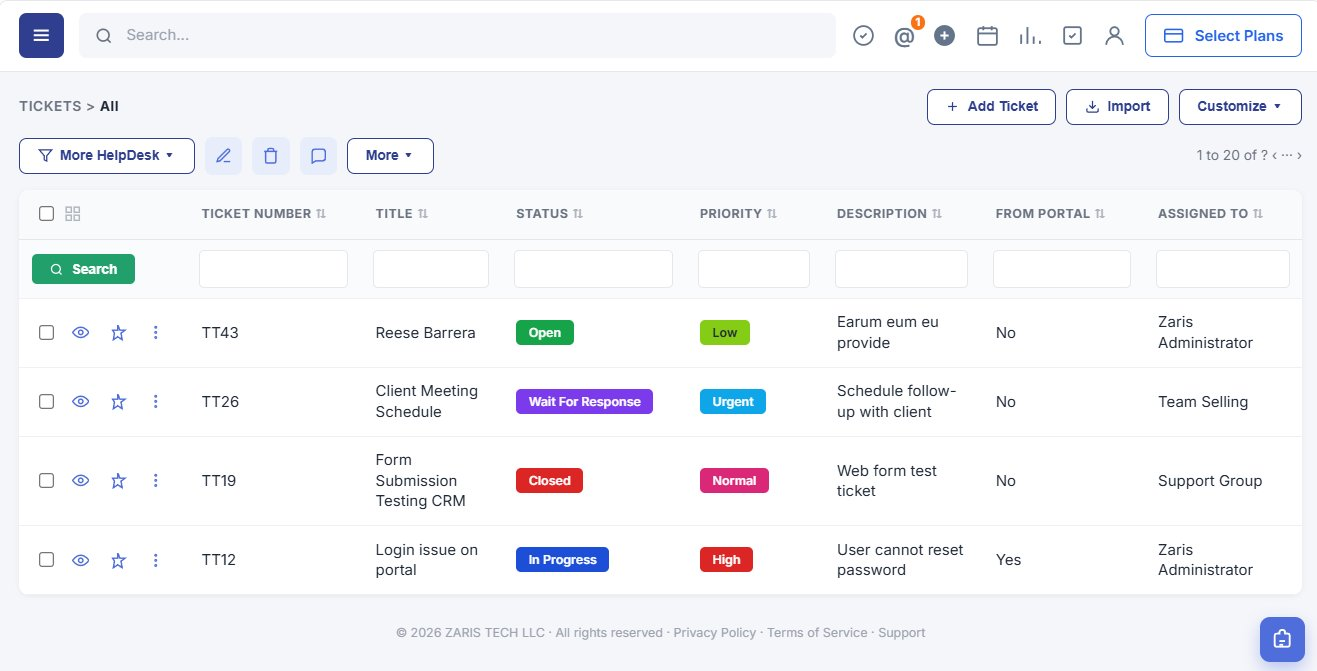
Every ticket in one list
Ticket number, title, status, priority, description and assignee with column filters and bulk actions for help desk teams.
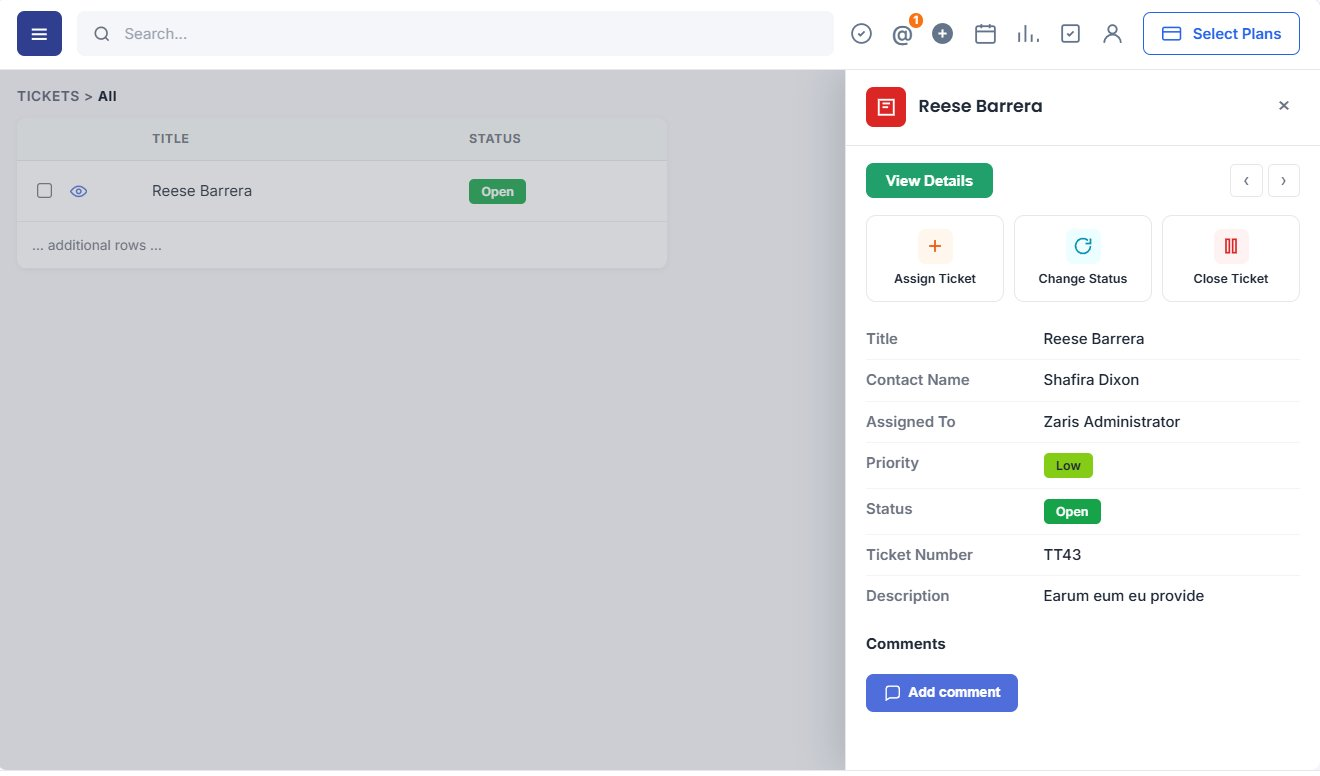
Quick View side panel
Preview title, contact, assignee, priority and status from the eye icon assign, change status, or close without leaving the grid.
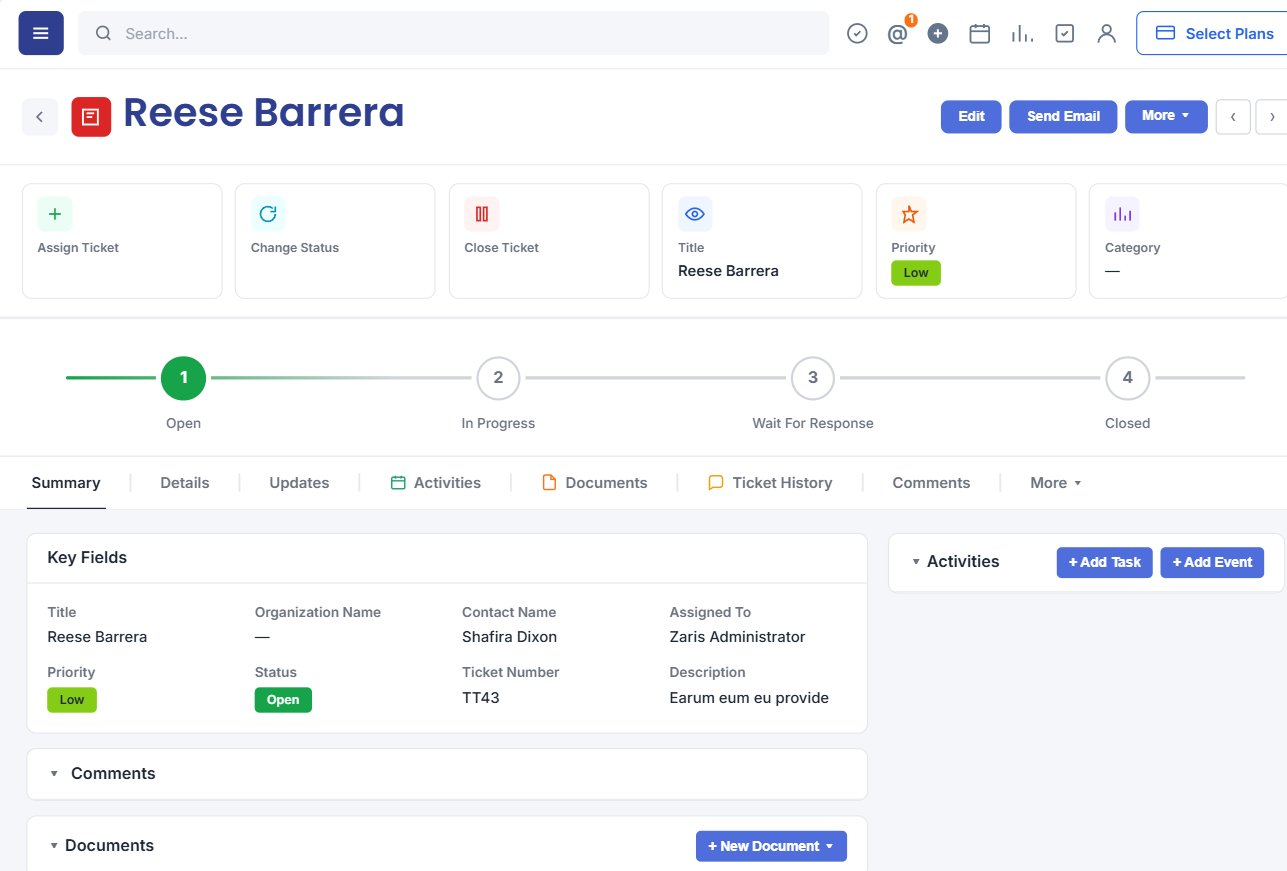
Detail & progress bar
Full ticket snapshot with Open → In Progress → Wait For Response → Closed timeline, tabs for comments, documents and ticket history.
All support tickets in one help desk workspace
The Tickets list shows every open and closed issue with color-coded status and priority pills, portal source, assignee and description snippets. Use per-column search, bulk edit, and row actions Quick View, favorite, and more to triage the queue without switching screens.
- Centralized ticket grid with TICKETS > All breadcrumb and Add Ticket actions.
- Status pills: Open, In Progress, Wait For Response, Closed visible at a glance.
- Priority from Low to Urgent so agents focus on what matters first.
Preview ticket details without leaving the list
Click the eye icon on any row to open Quick View a side panel with title, contact, assignee, priority, status, ticket number and description. Use Assign Ticket, Change Status or Close Ticket shortcuts, then jump to View Details or add a comment when you are ready.
- Instant preview of key ticket fields no full-page navigation.
- Fast triage when reviewing dozens of open tickets in the queue.
- Previous/next arrows move between tickets while the panel stays open.
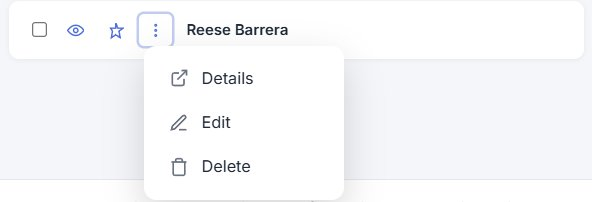
Quick Edits for tickets
Double-click any ticket row to edit priority, status, assignee or title inline. The ⋮ menu also offers Details for the full ticket profile, Edit for quick changes, and Delete with confirmation fewer clicks, always up-to-date ticket data.
Comprehensive ticket information
The Ticket Detail View shows title, assigned user, priority, status, description and history in one structured layout. A visual progress bar highlights Open, In Progress, Wait For Response and Closed so agents see resolution stage instantly with tabs for updates, activities, documents, ticket history and comments.
- Full snapshot on one screen contact, organization, severity and ticket number.
- Progress bar mirrors real ticket stage for faster decisions and handoffs.
- Activities and documents widgets keep support context beside key fields.
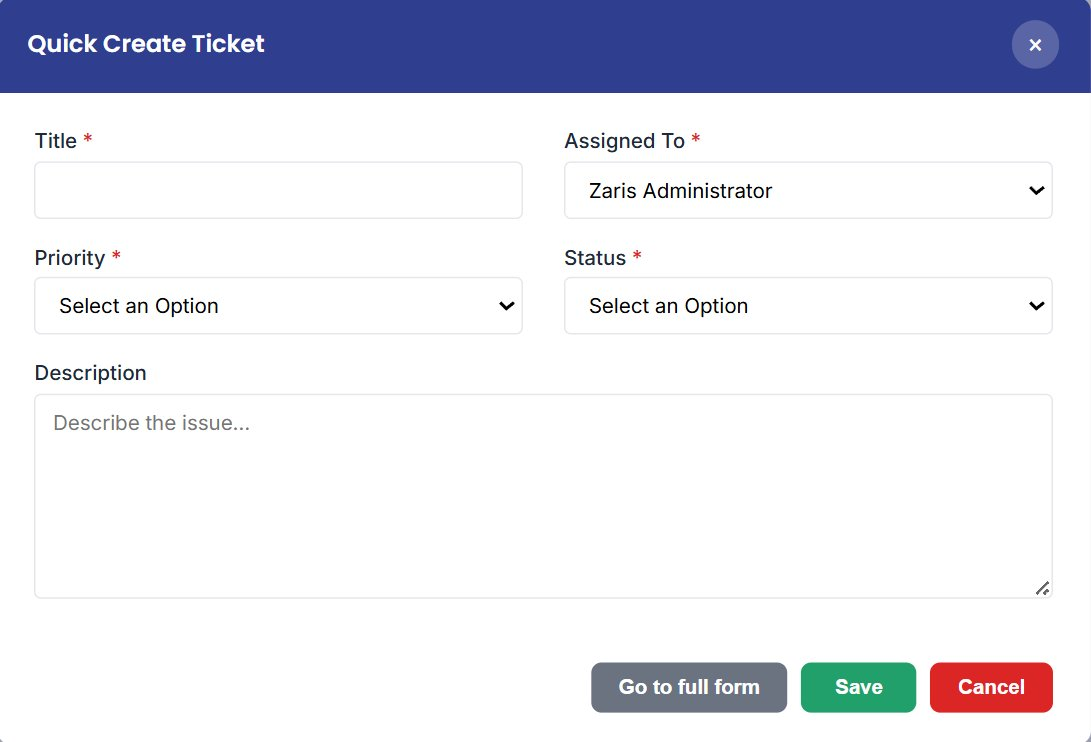
Quick Create New Ticket
Adding a new ticket is simple. The Quick Create form captures essentials at the start for faster resolution: enter a clear title, assign the handler, set priority (Low–Urgent), choose status, add a description, then save to log the ticket for tracking or open the full form for advanced fields.
- Title — clear subject line for the issue.
- Assign To — route to an agent or support group.
- Priority & Status — urgency and current stage from day one.
- Description — context agents need before first response.
From issue to resolution in four steps
Every customer touchpoint becomes a trackable workflow so nothing falls through the cracks.
1. Create a Ticket
Customers or team members can log issues directly into the CRM. Each ticket includes essential details such as subject, priority, and related record.
2. Assign Tickets
Tickets can be assigned to support agents or teams, ensuring the right person handles the issue promptly.
3. Track Progress
Monitor ticket status (Open, In Progress, On Hold, Closed) in real-time to avoid delays and missed deadlines.
4. Resolve & Close
Once resolved, tickets can be closed, ensuring the resolution is documented for future reference.
Benefits of Tickets
Faster resolution, clear accountability and actionable service insights built into every Zaris CRM workspace.
Faster Resolution
Assign and track progress instantly so agents respond sooner and customers wait less.
Transparency & Accountability
Always know who owns each ticket no duplicate work or dropped follow-ups.
Better Reporting & Insights
Analyze ticket volume, status trends and resolution times to improve service quality.
