 Skip to content
FAQs
- Home
- Zaris Features
- FAQs
Find answers instantly in our knowledge hub.
The FAQs module displays common questions and answers organized by category for easy navigation. Customers can search or browse to resolve queries without waiting while admins keep content accurate with Quick View previews, full Detail pages, and fast edits from Draft through Published.
From browse to published answer
Categorized discovery
FAQs grouped by category with search and column filters customers find answers faster without live support.
Quick View answers
Preview solutions from the list instant view, easy navigation between questions, no extra clicks.
Always up to date
Admins add or edit FAQs and move Draft → Reviewed → Published so the knowledge base stays reliable.
FAQs organized for faster discovery
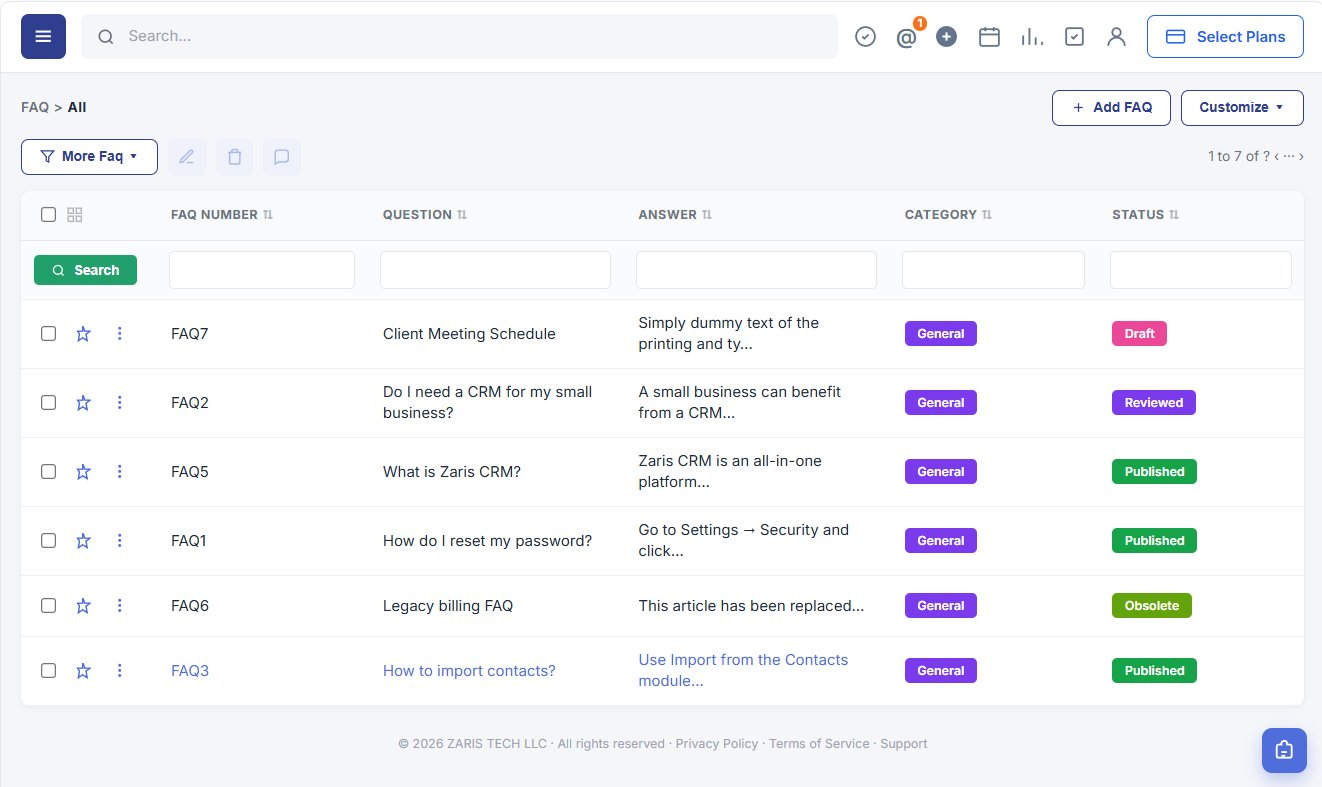
The FAQs main page lists common questions and answers by category. A search bar and per-column filters help customers and admins find content instantly with status pills for Draft, Reviewed, Published and Obsolete so teams control what goes live.
- Categorized FAQs for faster discovery across your knowledge base.
- Search bar for instant answers without waiting on support.
- Simple, user-friendly list with Add FAQ and Customize for admins.
Glance at Answers Without Extra Clicks
Quick View lets customers preview an FAQ answer directly from the list instant view of the solution, easy navigation between questions, and faster browsing when comparing several topics, without opening the full detail page for every item.
- Instant view of solutions from the list row.
- Easy navigation between related questions.
- Saves time when browsing multiple FAQs in a session.

Keep your FAQs always up to date
Admins can quickly edit or add FAQs from the list easy to add new questions, update answers instantly, and keep the knowledge base fresh. Row actions open Details, Edit, or Delete so publishing workflows stay fast and reliable.

Step-by-step guidance for common issues
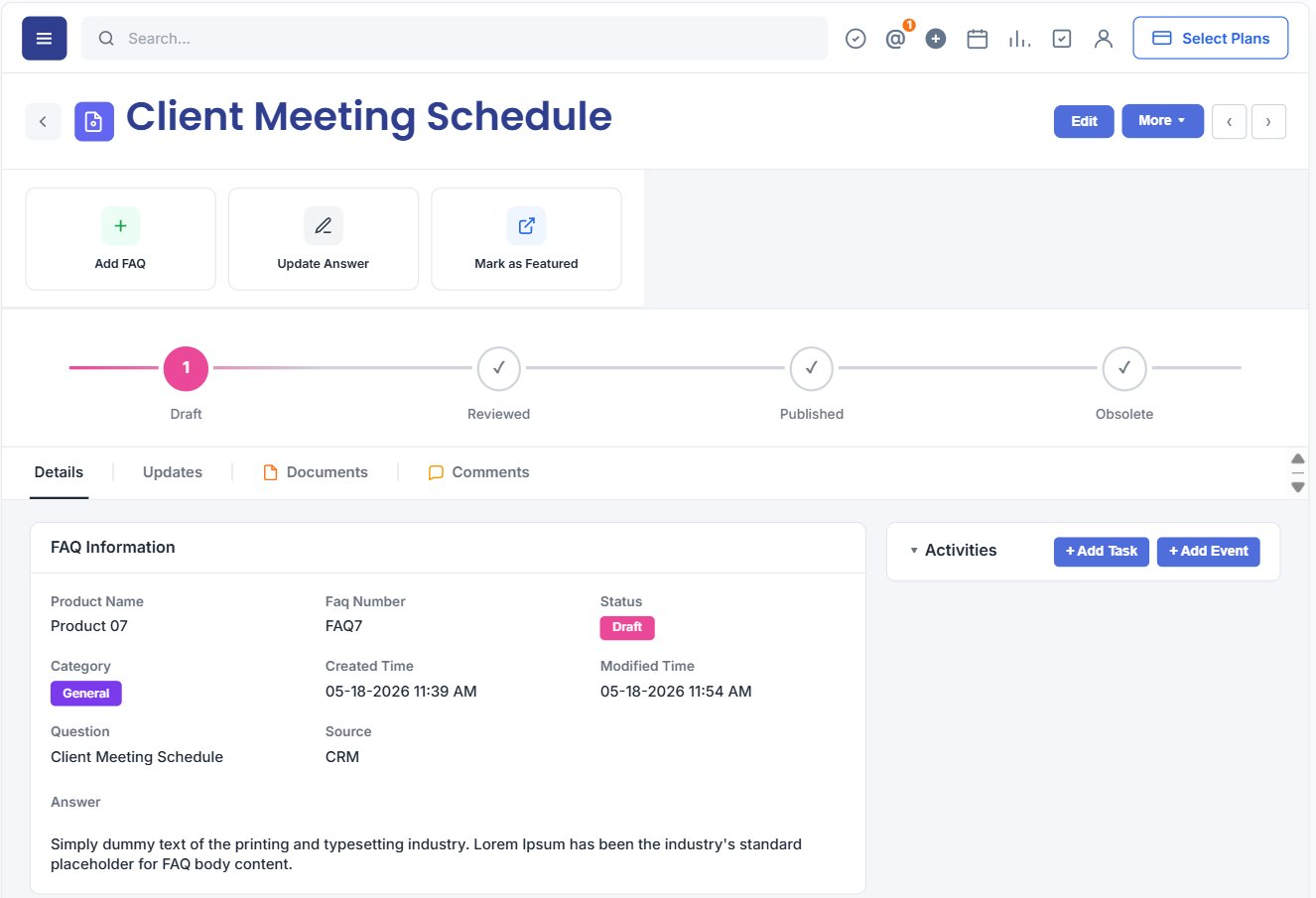
The Detail View provides full answers with plain-language explanations, optional images or step-by-step instructions, and cross-links to related FAQs for deeper help. Admins see FAQ Information, publishing status (Draft → Reviewed → Published → Obsolete), and tabs for Updates, Documents and Comments.
- Complete answers in plain language on one page.
- Room for images, steps, or links to guides and related FAQs.
- Publishing workflow with visual Draft → Published progress bar.
Creating a new FAQ
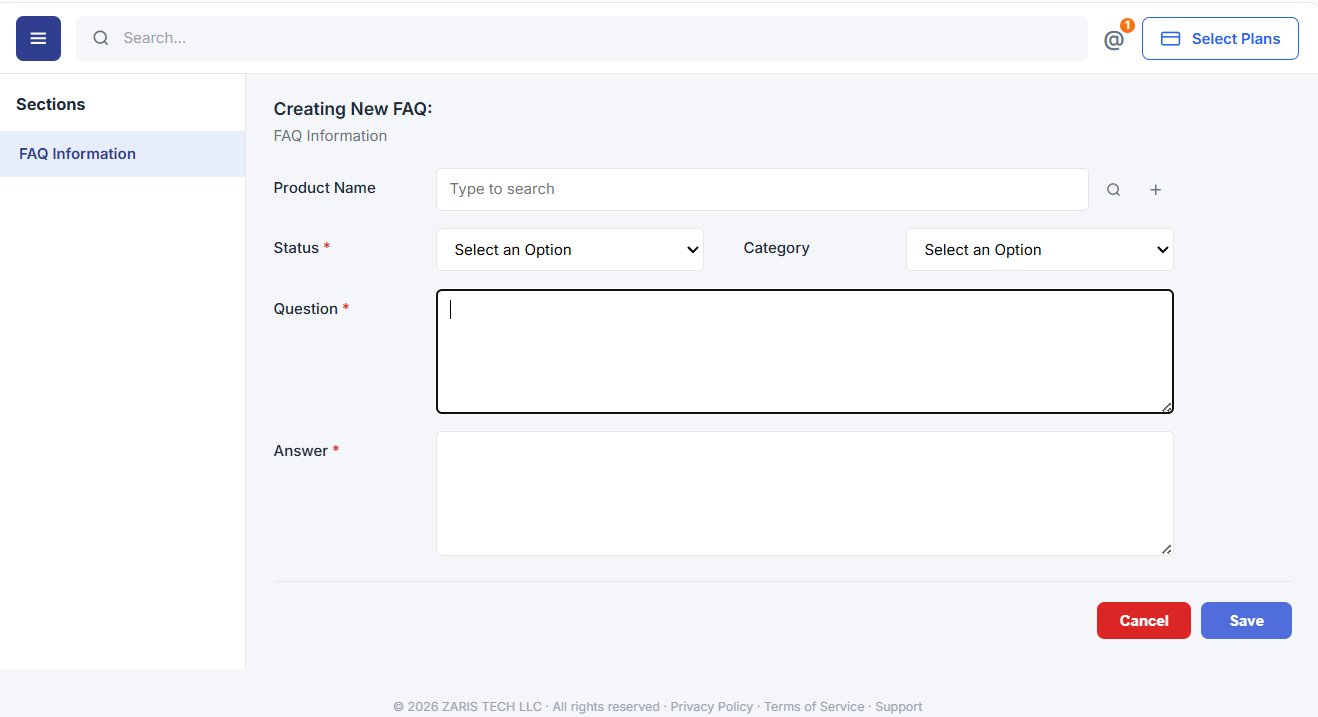
Admins use the Creating New FAQ form to add questions and answers with product link, status, and category. Required fields Question and Answer ensure every entry is complete before review and publish.
- Product Name lookup with search and quick add.
- Status and Category dropdowns for organized publishing.
- Save or Cancel keep the knowledge base accurate in one screen.
Benefits of FAQs Module
Self-service support that scales less repetitive work for your team and better experiences for customers.
24/7 Self-Service
Support
Customers get answers instantly without waiting for live support.
Reduced Support
Workload
Minimizes repetitive queries, freeing up support teams for critical issues.
Enhanced Customer Experience
Clear, quick answers build trust and satisfaction.
