 Skip to content
Price Books
- Home
- Zaris Features
- Price Books
Price Books — Setup Guide
The Price Books module enables administrators and sales managers to manage multiple pricing structures efficiently within the CRM. By using Price Books, businesses can define and control different selling prices for products and services based on customer type, market, or region ensuring flexibility and accuracy in every sales transaction.
Price Books List
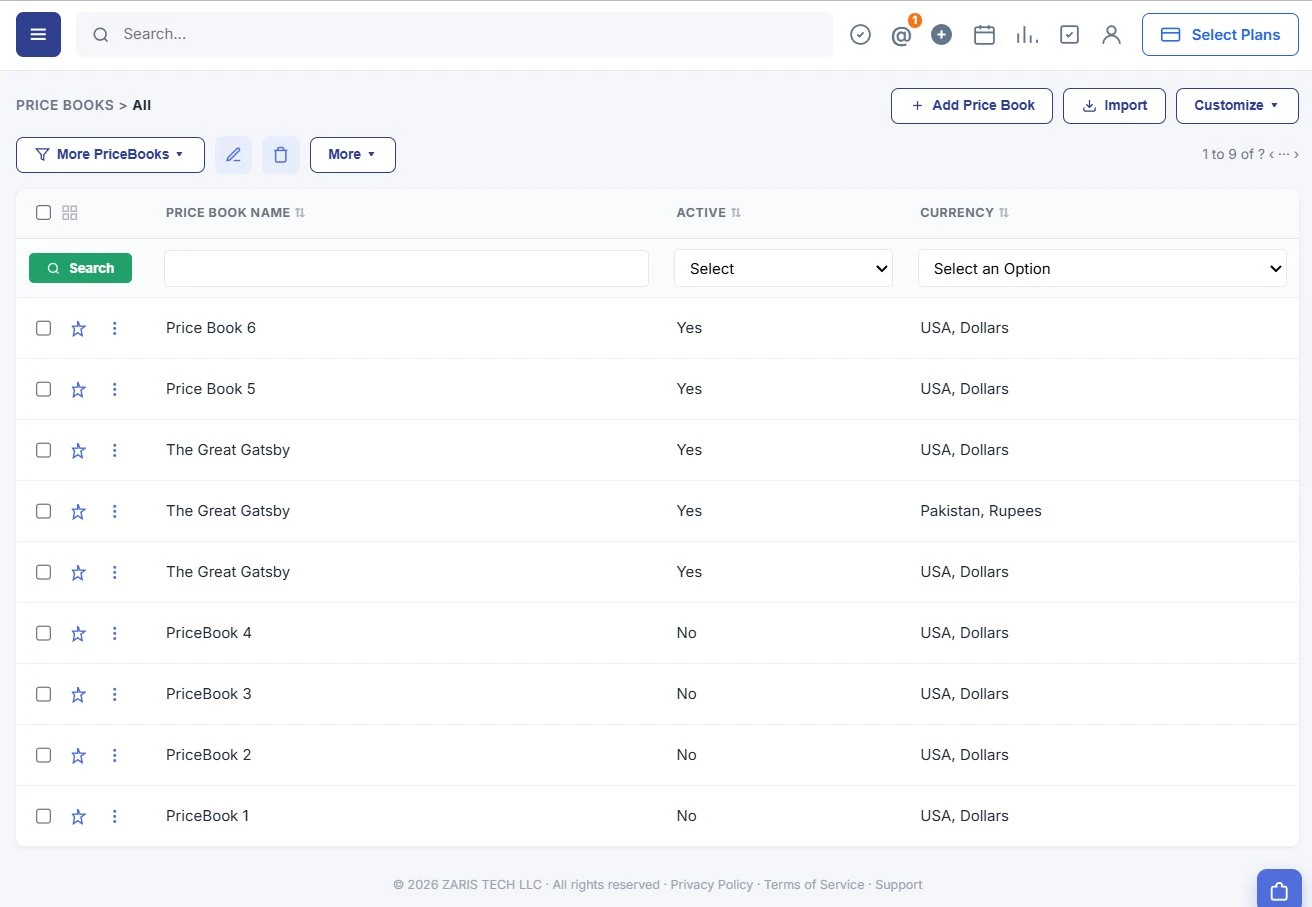
The main Price Books page shows every pricing structure name, active status and currency with column filters, import, and row actions for quick access to details and edits.
- Filter by Price Book Name, Active (Yes/No) and Currency.
- Support multiple currencies USA Dollars, Pakistan Rupees and more.
- Active books apply on new quotes and orders; inactive books stay for history.
Creating a Price Book
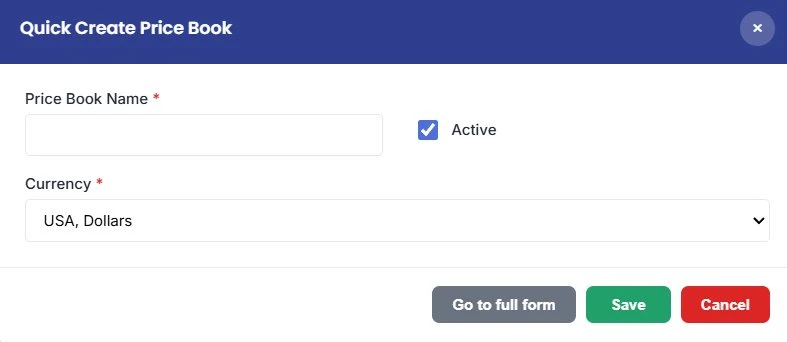
You can create a Price Book record by using the Add Price Book button on the Price Books screen, Quick Create, or by importing a price book.
Add a new Price Book
- Click on the main Menu → go to Inventory → select Catalog > Price Books.
- Click + Add Price Book. The Add Price Book window opens.
- Click View Full Form for the full Creating Price Book window.
- Enter Price Book Name, enable Active, and select Currency.
- Add a Description in Description Details, then click Save.
Linking Products and Services to a Price Book
You can add any number of products and services to Price Books and assign the prices manually.
Follow these steps to add products or services to the price book:
- Click on the main Menu.
- Go to the Inventory tab.
- Select Catalog > Price Books. The Price Books page opens.
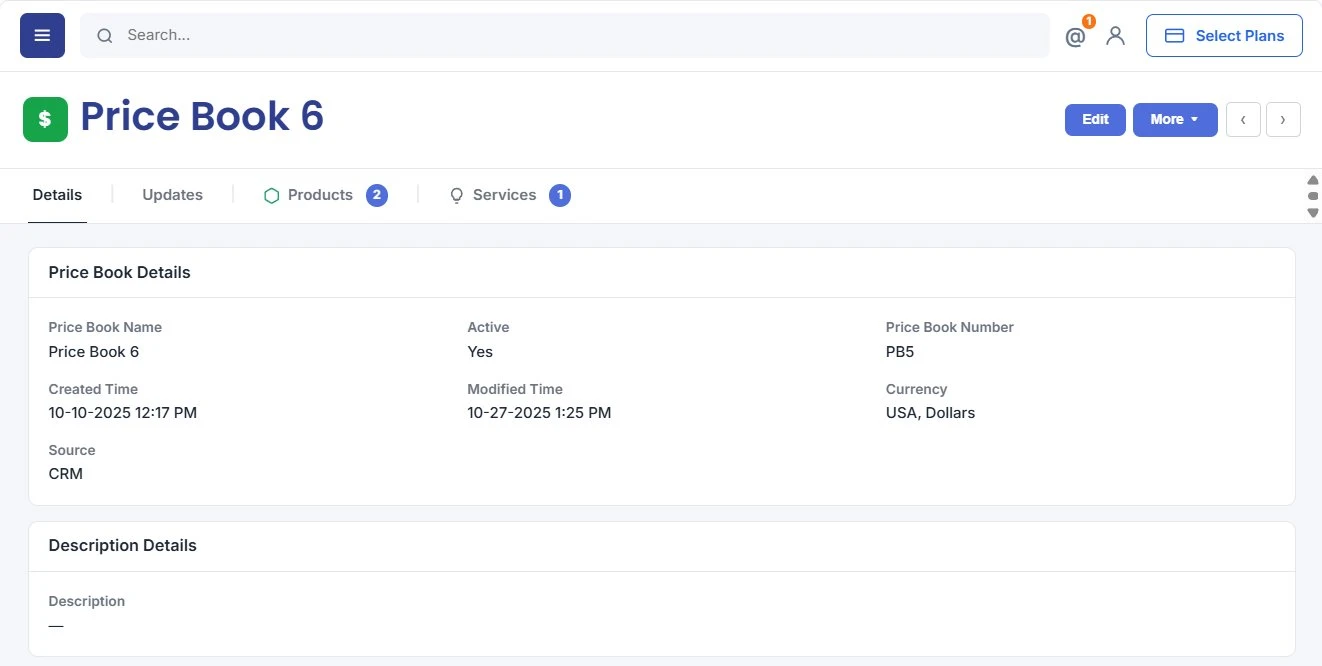
- Select and click to open a Price Book record. The Summary View of the record opens.
- In the Summary View, select Products or Services.
- Click Products if you want to link a product. The Products List View opens.
- By default, the screen displays products already available for the Price Book.
- Click Link Products. The Products window opens.
- Click the checkbox to select a product.
- Click Add.
- Note: You can edit the selling price of the product by clicking the field and modifying the value.
- Click Services if you want to link a service. Follow the same process for adding a service record.
The Products tab displays the products you added.
Editing a Price Book
Follow these steps to edit a Price Book:
- Click on the main Menu.
- Go to Inventory.
- Select Catalog > Price Books. The Price Books page opens.
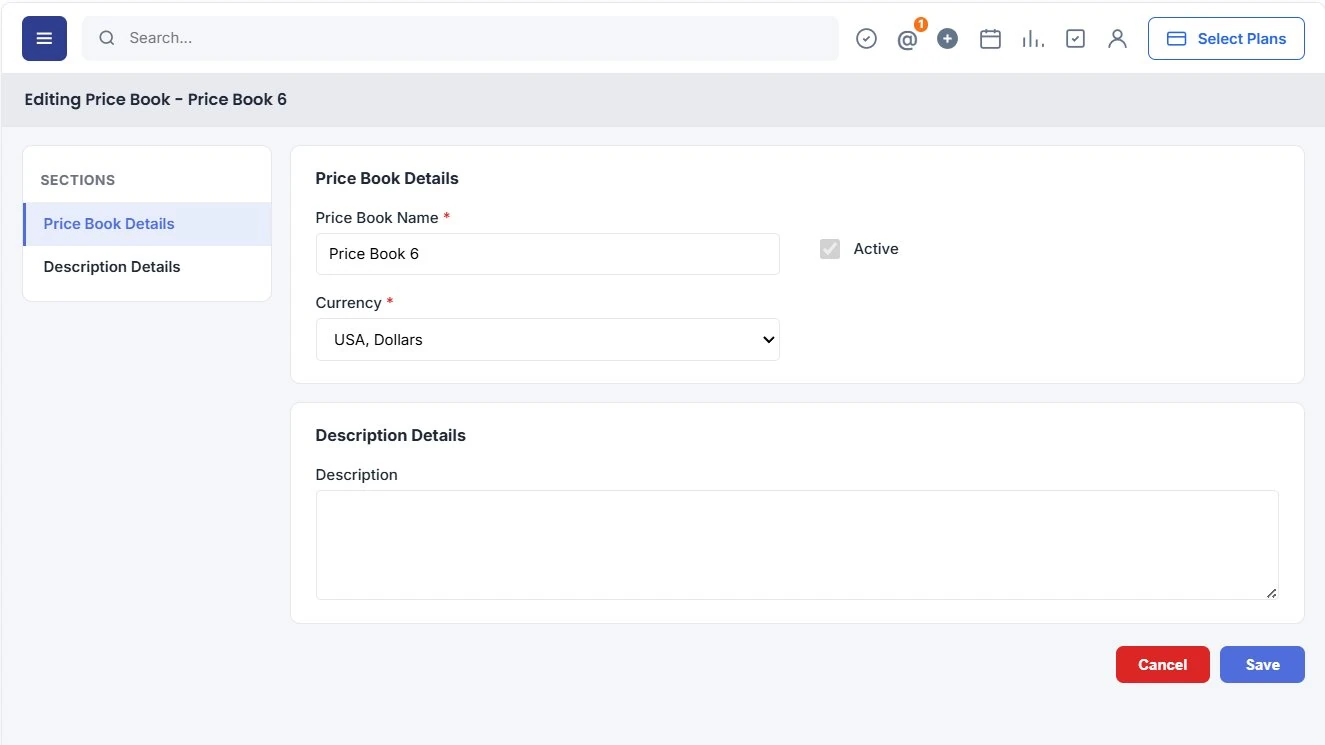
- Select the Price Book record you want to edit. The Editing Price Book page opens.
- Enter or select the following information –
- Price Book Details section
- Price Book Name: Enter a name for the Price Book
- Active: Enable the checkbox to make the Price Book active.
- Currency: Select the currency for the Price Book.
- Price Book Details section
- Click Save.
The edited Price Book is available in the Price Book List View
Benefits For price books
Centralized pricing that saves time, reduces errors and supports multiple sales strategies.
Time Savings
Automates price updates across invoices, quotes, and sales orders, reducing manual effort.
Consistency
Ensures that your team applies the correct pricing across transactions, minimizing errors.
Customization
Allows you to maintain multiple pricing strategies, such as retail, wholesale, or special customer discounts.
Streamlined Operations
Centralizes pricing data, making it easier to manage and adjust prices quickly when required.
