 Skip to content
Mail Converter
- Home
- Zaris Features
- Mail Converter
Mail Converter — Setup Guide
The Mail Converter Module in Zaris CRM is a powerful automation tool that scans designated mailboxes such as [email protected] or [email protected] and automatically converts incoming emails into CRM records.
Automating Email Capture
The Mail Converter module in Zaris CRM automates the process of capturing incoming emails and converting them into actionable CRM records.
It continuously scans a designated mailbox (e.g., [email protected] or [email protected]) and, based on pre-set rules, automatically creates records such as Leads, Tickets, Contacts, or Organizations.
Key Benefit:
This automation ensures that no customer inquiries, leads, or support requests are missed enhancing response time, accuracy, and productivity across your team.
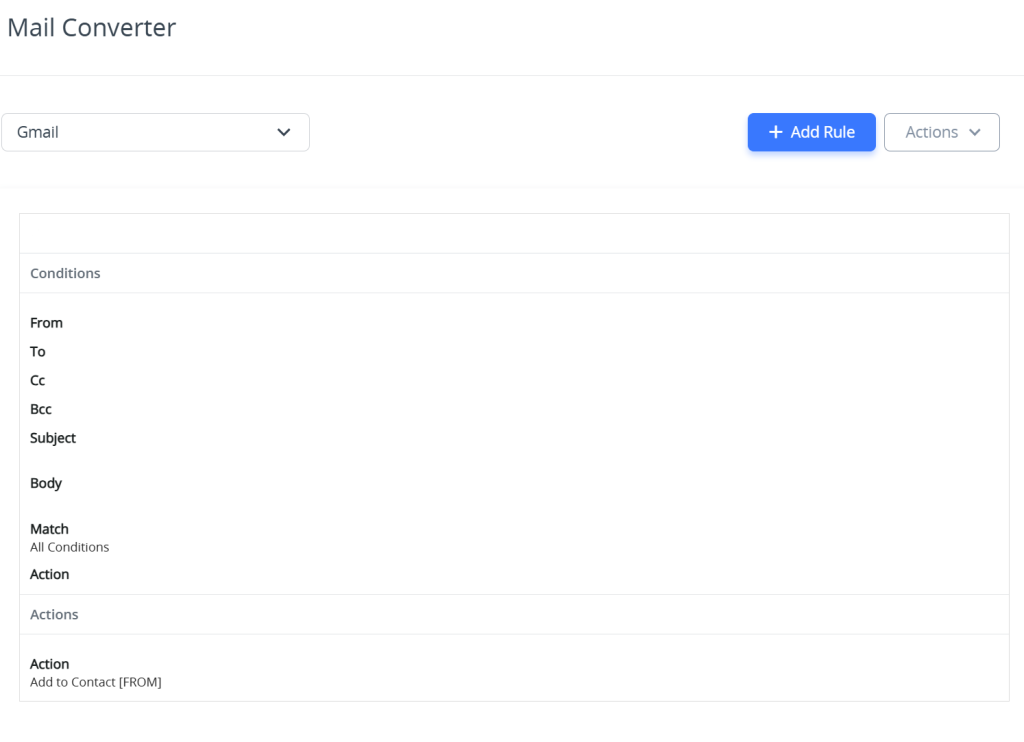
Creating Conversion Rules
Steps to Add a New Rule:
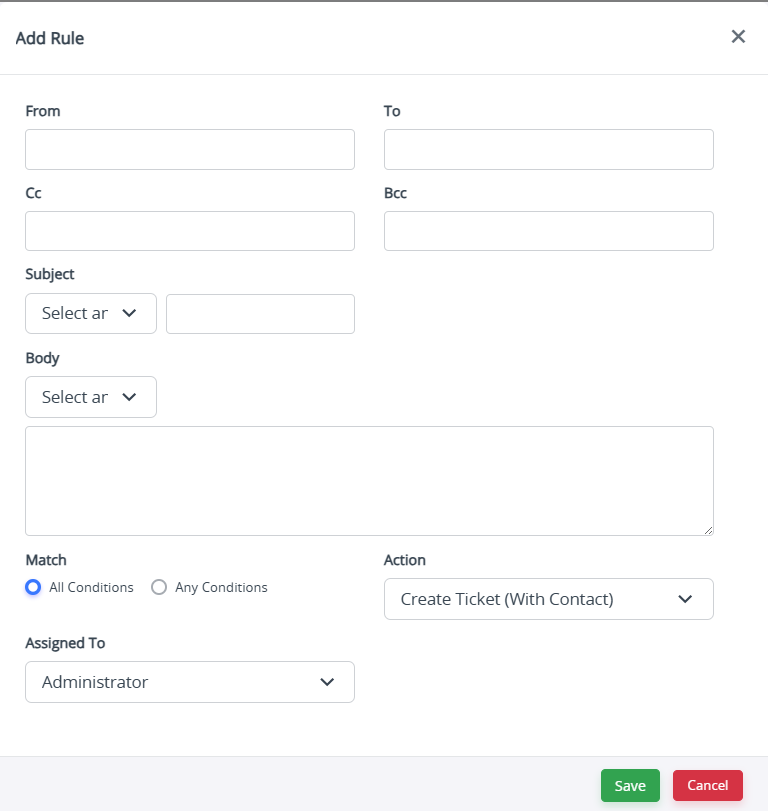
Click the + Add Rule button.
Fill in the following fields:
From, To, Cc, Bcc: Define sender or recipient addresses to filter specific emails.
Subject / Body: Add conditions such as specific keywords (e.g., “New Lead”, “Urgent”, “Inquiry”).
Choose how the system should match rules:
All Conditions: All criteria must match.
Any Condition: Any single criterion can trigger the rule.
Under Action, select what the system should do when an email meets the criteria:
Create Ticket (With Contact)
Update Ticket
Create Lead, Contact, or Organization
Add to Existing Contact, Lead, or Organization (FROM/TO)
Use the Assigned To dropdown to automatically assign the created record to a specific user or team.
Save the rule.
Once saved, the Mail Converter automatically processes incoming emails using the defined rules and actions.
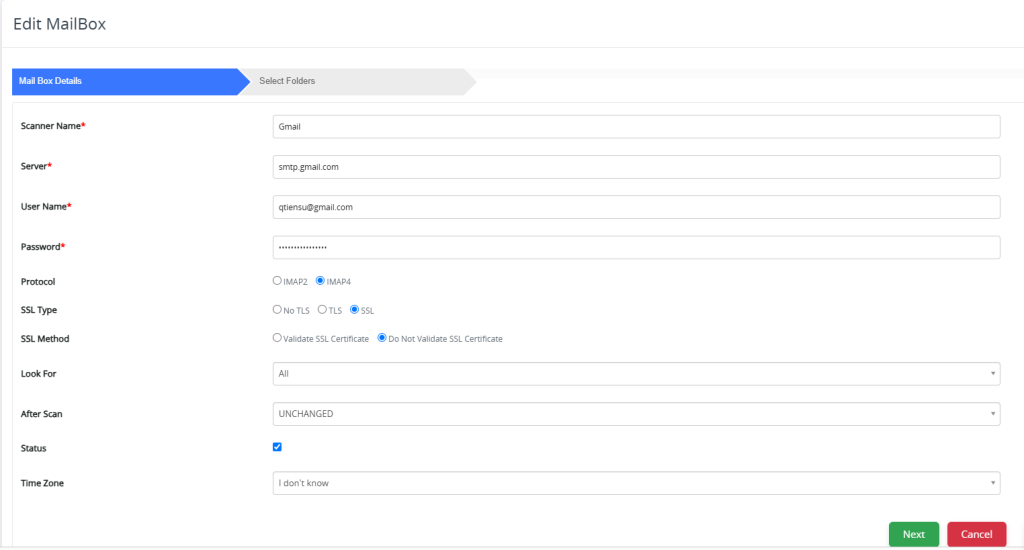
Edit a Mailbox
Click Edit MailBox to modify an existing mailbox or Add New MailBox to connect a new one.
This opens the configuration form for defining your mailbox connection.
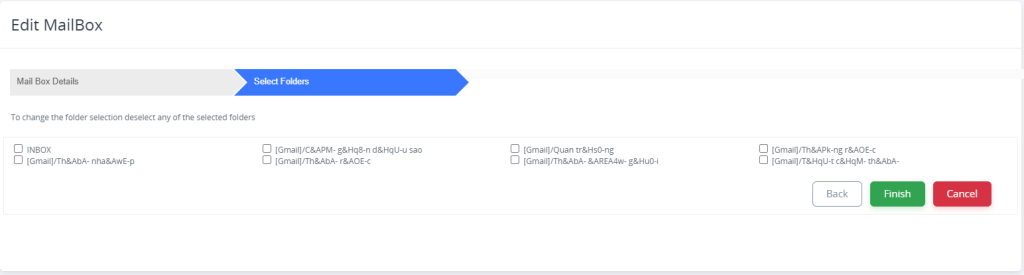
Proceed to Folder Selection
After entering the mailbox details, click Next to move to the Select Folders section.
This allows you to specify which folders the CRM should scan (for example: INBOX, Support, Sales, etc.).
You can select one or multiple folders depending on your workflow.
Best Practices and Monitoring
Test Before Deploying:
Always test your Mail Converter rules with sample emails to confirm correct field mapping and rule accuracy.
Avoid Overlapping Rules:
Ensure that rules don’t overlap for the same criteria to prevent duplicate records.
Monitor Activity Logs:
Regularly review processed email logs to track which messages were successfully converted or skipped.
Keep Credentials Updated:
If mailbox credentials or security settings change, update them promptly to maintain uninterrupted automation.
