 Skip to content
Calendar
- Home
- Zaris Features
- Calendar
Plan, track, and organize all your activities.
The Calendar module in Zaris CRM simplifies task and event management with a complete scheduling system multiple views, quick add options, and customizable settings.
With this module, teams can:
- Stay organized — Manage tasks, meetings, and events from one interface
- Save time — Quickly add tasks or events without leaving the calendar view
- Customize easily — Configure fields, workflows, and settings to match business needs
- Improve collaboration — Share schedules, avoid conflicts, and keep everyone aligned
- Track progress — Monitor deadlines with day, week, month, or agenda views
Multiple views
Switch between Month, Week, Day, and Agenda to see work the way you prefer.
Quick add
Create tasks and events in seconds they appear on the calendar immediately.
Customize
Fields, workflows, picklists, and calendar settings tailored to your business.
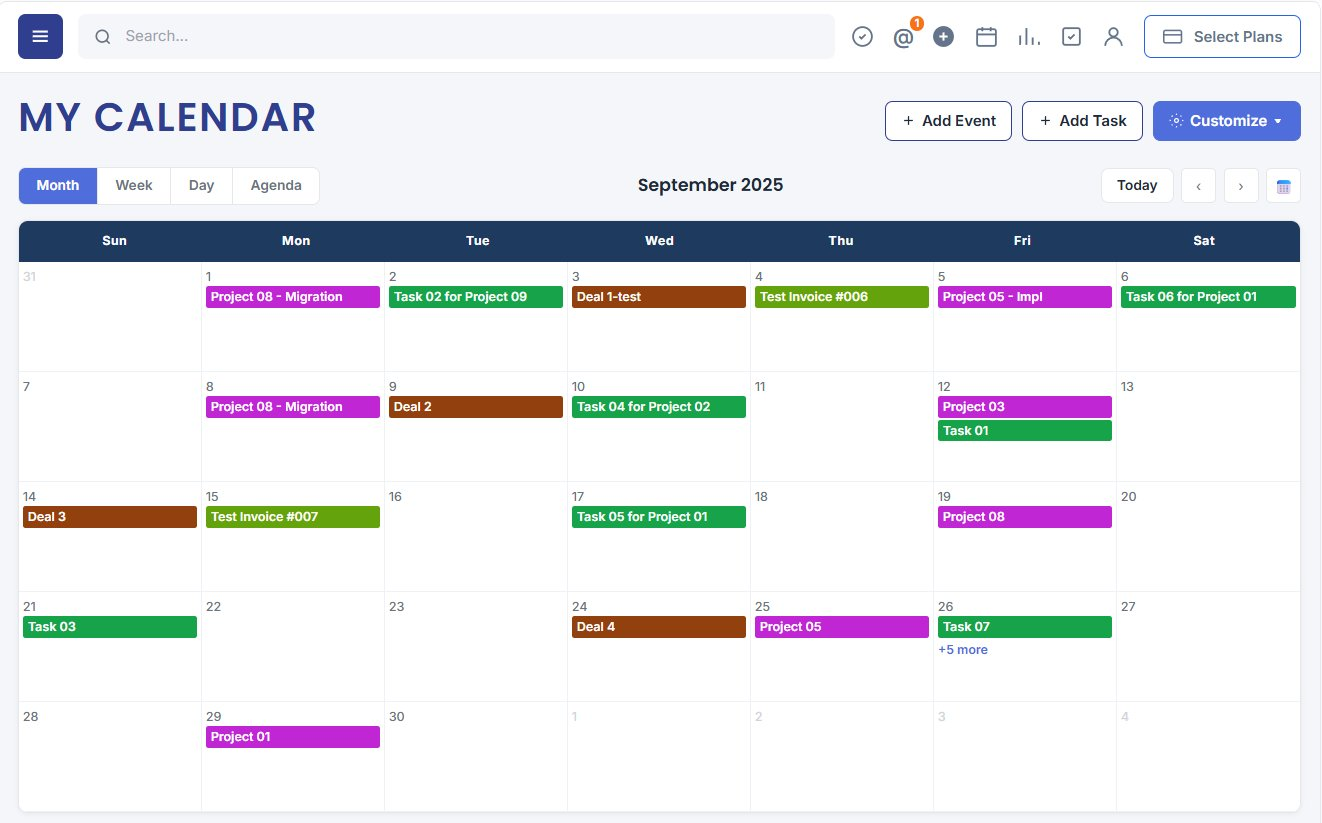
Calendar Overview - My Calendar
The main calendar shows projects, tasks, deals, and invoices as color-coded bars. Use Month, Week, Day, or Agenda views, navigate with Today and arrows, and add records from the header without leaving the grid.
Customize menu
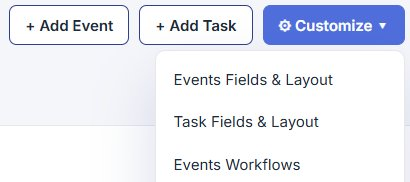
Configure fields, workflows, and settings
The Customize menu opens layout, workflow, picklist, and calendar settings options for admins and power users.
- Events Fields & Layout · Task Fields & Layout
- Events Workflows · Task Workflows
- Picklist Values · Calendar Settings
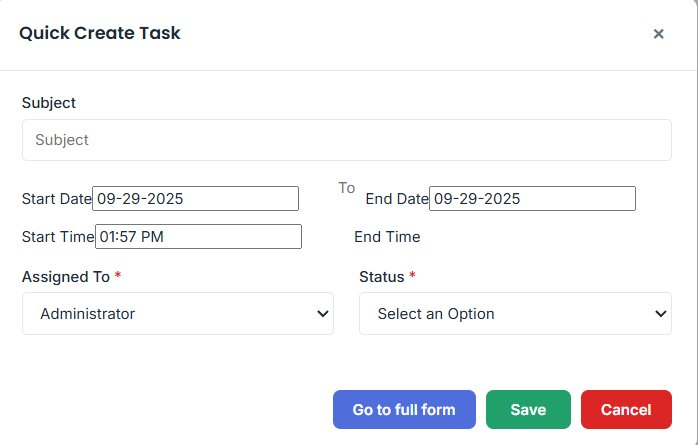
Quick Create Task - Add Task
Create tasks from the calendar with title, assignee, priority, due date, and more visible instantly on the grid.
- Quickly create from any view (day, week, month, agenda)
- Assign tasks to team members
- Set deadlines and priorities
- Tasks appear on the calendar immediately
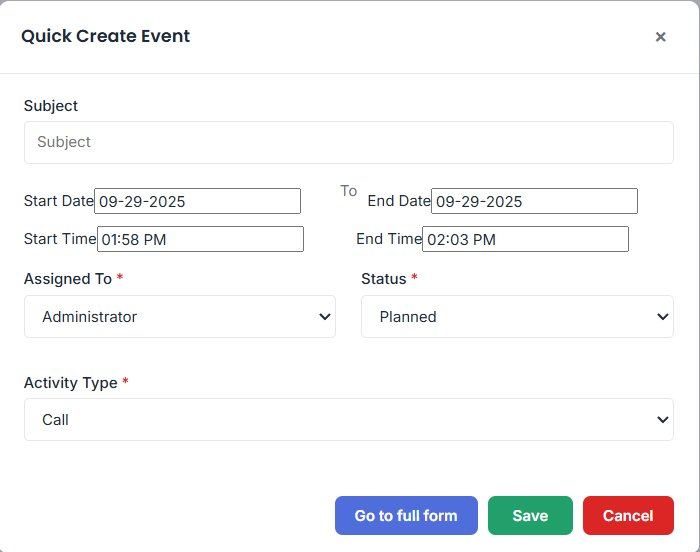
Quick Create Event - Add Event
Schedule meetings, calls, and planned activities with participants, reminders, and time slots.
- Schedule meetings, demos, and follow-ups
- Add participants and assign responsibilities
- Configure reminders and notifications
- Events sync with the calendar view automatically
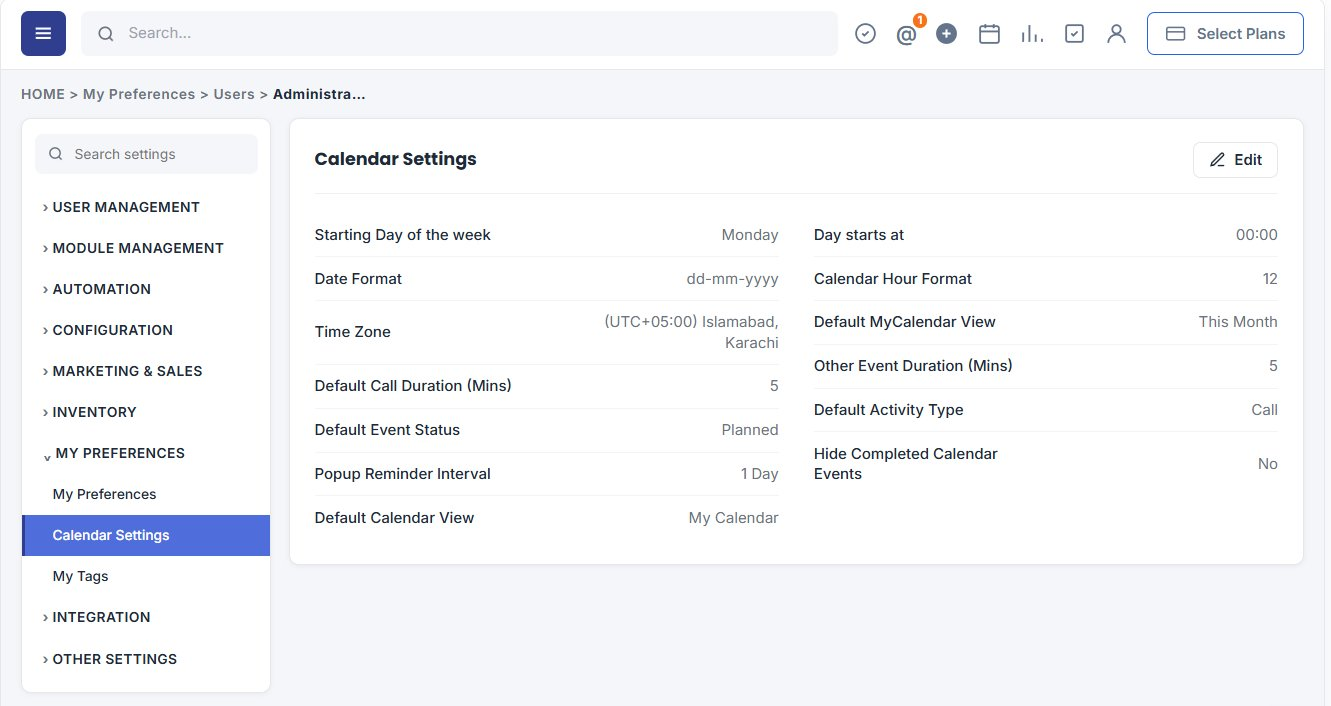
Calendar Settings
Personalize how your calendar works
Open Customize → Calendar Settings (or the dedicated Calendar Settings admin page) to align scheduling with your business.
- Start of week & time format — First day, daily start time, 12/24-hour display
- Date format & time zone — Regional preferences
- Default views & durations — calendar view, call/event duration, activity type
- Reminders & event status — Popup reminders and default status for new events
- Hide completed events — Keep the calendar clean
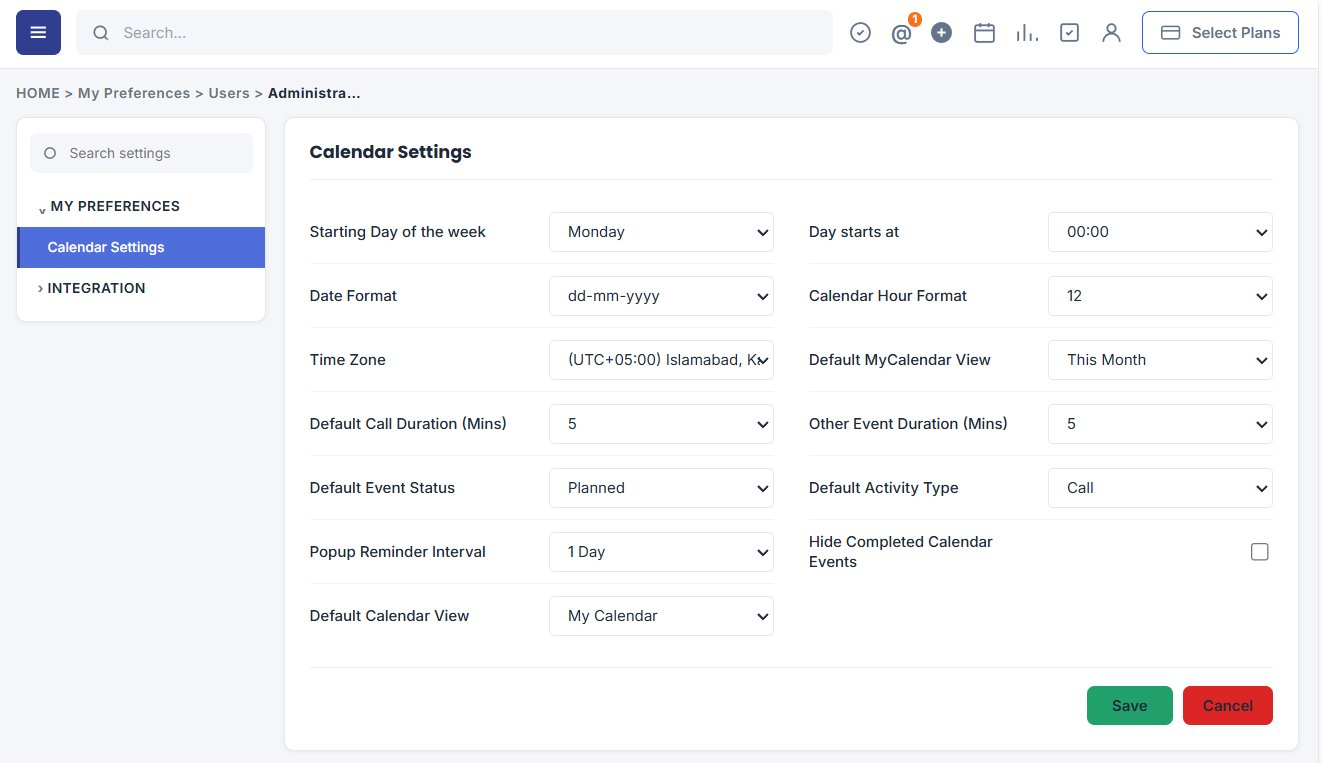
Editing the Calendar Settings
Click Edit, update dropdowns and the hide-completed checkbox, then Save to apply team-wide scheduling defaults.
Why teams use Calendar
Stay organized from one scheduling hub
Stay organized
Tasks, meetings, and events in one interface fewer tools and fewer missed deadlines.
Save time
Quick add and customizable layouts mean less clicking and faster scheduling.
Improve collaboration
Shared visibility helps teams avoid conflicts and stay aligned on priorities.
