Skip to content
Assets
- Home
- Zaris Features
- Assets
Assets Module – User Guide
The Assets Module in Zaris CRM helps you manage and track company-owned or customer-linked assets efficiently. It provides a complete view of every asset’s lifecycle from assignment and service history to current status ensuring better asset monitoring and maintenance.
List View
All assets in one table — name, product, serial number, customer, status and assignee with filters.
Detail View
Full asset profile with lifecycle dates, linked customer and contact, tickets and documents.
Quick Create
Add assets fast with product, serial number, dates, status and customer links — or open the full form.
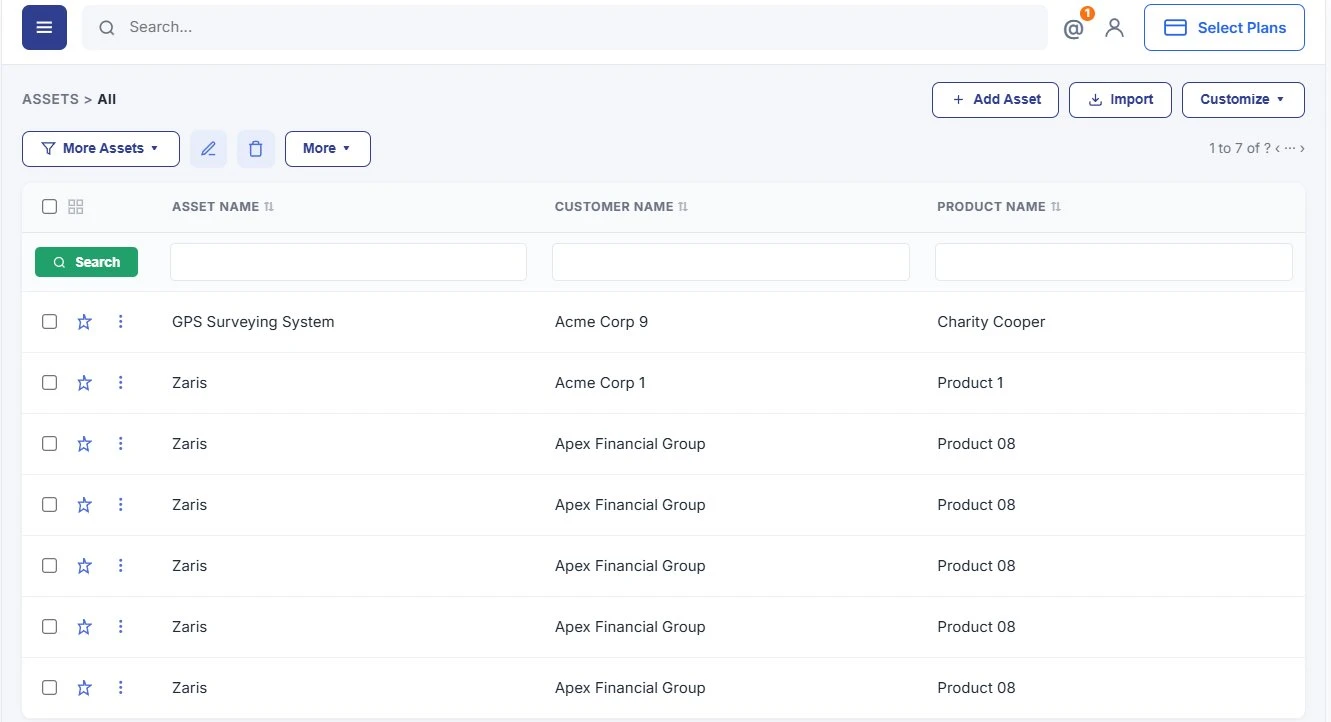
Module List View
The List View displays all assets in a structured table format, showing important details such as Asset Name, Product Name, Serial Number, Customer Name, Status and Assigned User. Use the search bar and column filters to locate specific assets quickly.
- Access key actions like View, Edit or Delete directly from each row.
- Star favorites and use bulk actions from the toolbar.
- Import assets or customize columns with Add Asset and Customize.
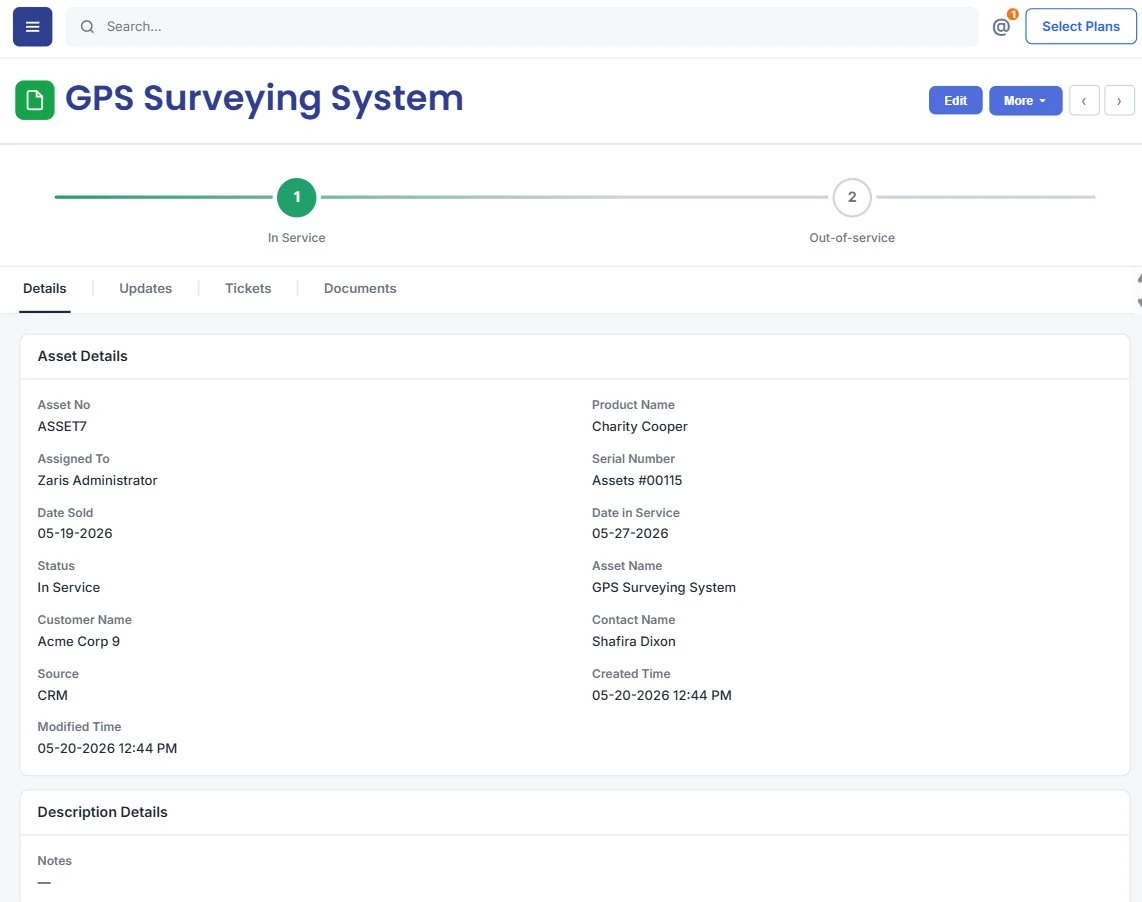
Module Detail View
The Detail View provides a comprehensive overview of a specific asset. See full asset information including purchase details, service dates and linked customer or contact data. Track history and view related tickets and documents.
- Lifecycle status bar In Service through Out-of-service.
- Asset Details and Description Details sections on the Details tab.
- Tabs for Updates, Tickets and Documents linked to the asset.
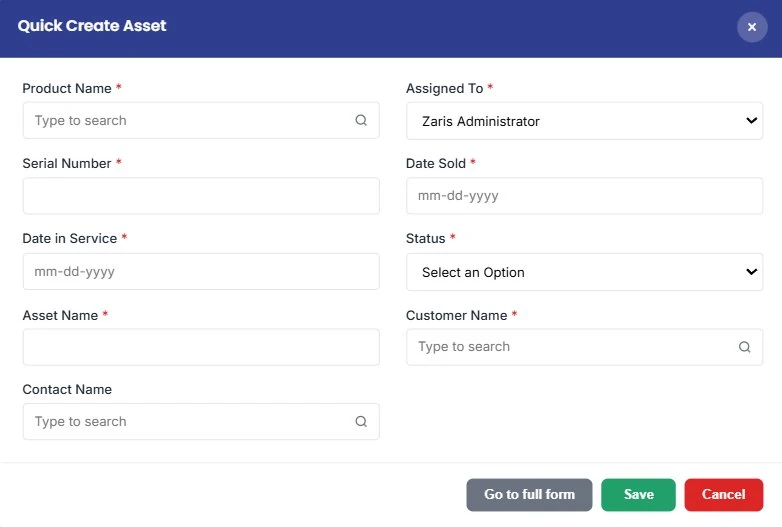
Add New Asset
To add a new asset, click the + Add Asset button. A popup form appears with the key fields below. Once filled, click Save to record the asset in your CRM.
- Product Name — select the related product from your CRM inventory.
- Assigned To — choose the user or team responsible for this asset.
- Serial Number — enter the unique identification number.
- Date Sold & Date in Service — specify important lifecycle dates.
- Status — mark as Active, Inactive or Under Maintenance.
- Asset Name — define a recognizable name for easy identification.
- Customer Name & Contact Name — link the asset for relationship tracking.
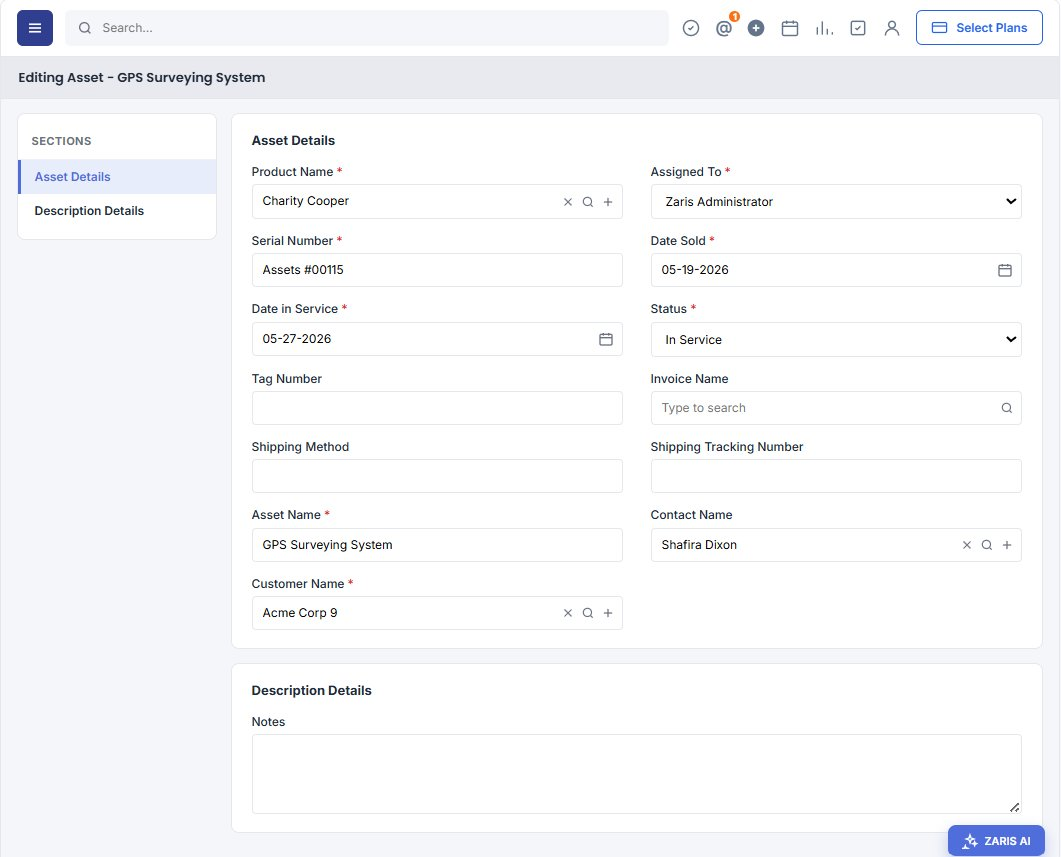
Edit Existing Assets
To modify an existing asset’s details, open the record and click the Edit button (available in the header of the Detail View). You can update fields like status, service date, or assigned user and then save changes to keep your asset records accurate and up to date.