 Skip to content
Comments (Advanced)
- Home
- Zaris Features
- Comments (Advanced)
Stay Connected with Team Conversations
The Comments Module allows CRM users to collaborate and communicate directly within records. Instead of relying on external tools or scattered conversations, users can add comments, tag team members, and maintain a complete communication trail right inside the CRM.
In-record comments
Post comments from the Summary of any module Contacts, Organizations and more.
@Mentions
Tag colleagues with @username so the right people are notified instantly.
Attachments & links
Attach files from CRM or your computer, add images, documents and sticky notes.
Comments in Every Record
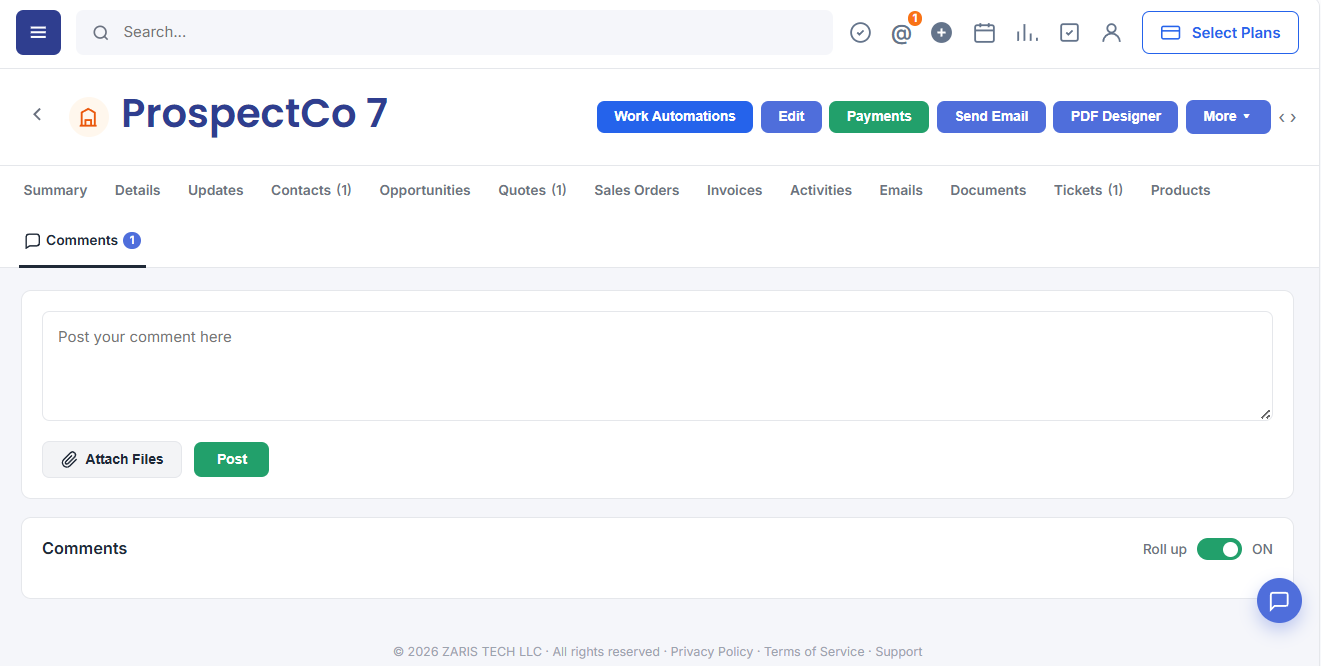
Open the dedicated Comments tab on any record to post, review and roll up discussions all linked to the parent CRM record with full CRM chrome and navigation.
Actions in the Comment Feature
You can add, edit, reply, and export comments. You can collaborate with other users by tagging them in a comment. You can add links to files, images, etc., to a comment.
1. Adding a Comment
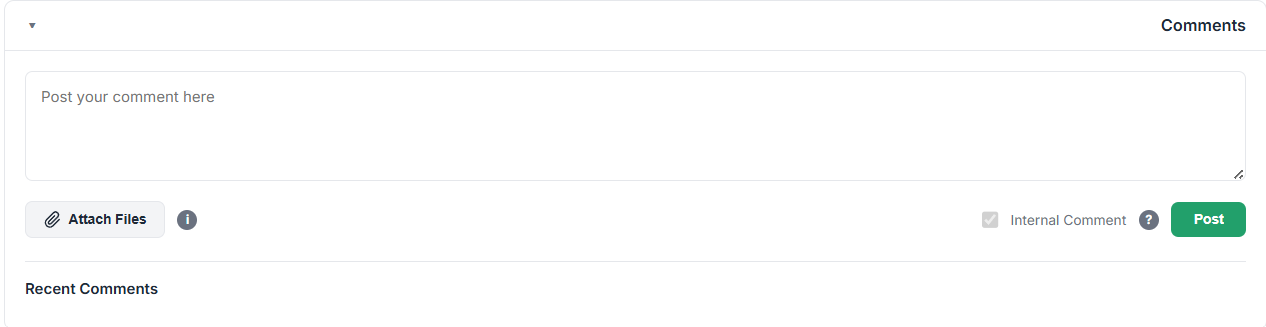
The Comment textbox is available in the Summary of all modules. In this example, we will consider the Contacts module.
Follow these steps to add a comment:
- Go to Contacts Module or any other Module. The List View opens.
- Click on the record where you want to add a comment. The Summary View opens.
- Click the Comments textbox in the Activity section.
- Type your comment.
- Tag the colleague you want to know about the comment.
- Click Post.
2. Using @Mentions
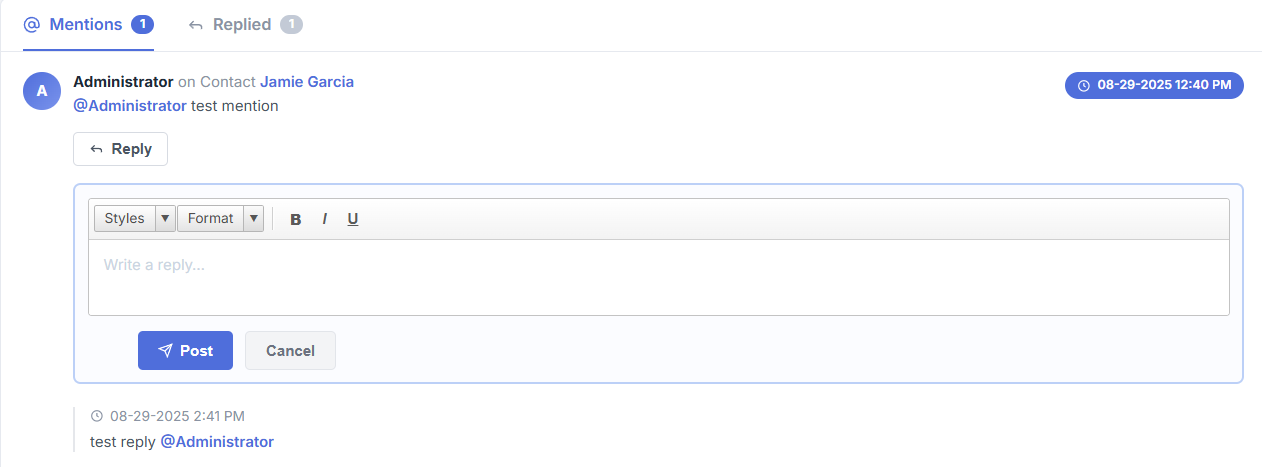
The easiest way to grab someone’s attention to something on Zaris CRM is to use @mentions!
Add your comment in the Comment textbox and tag your colleague with their name by clicking the @ symbol and selecting their name from the drop-down.
3. Replying to a Comment
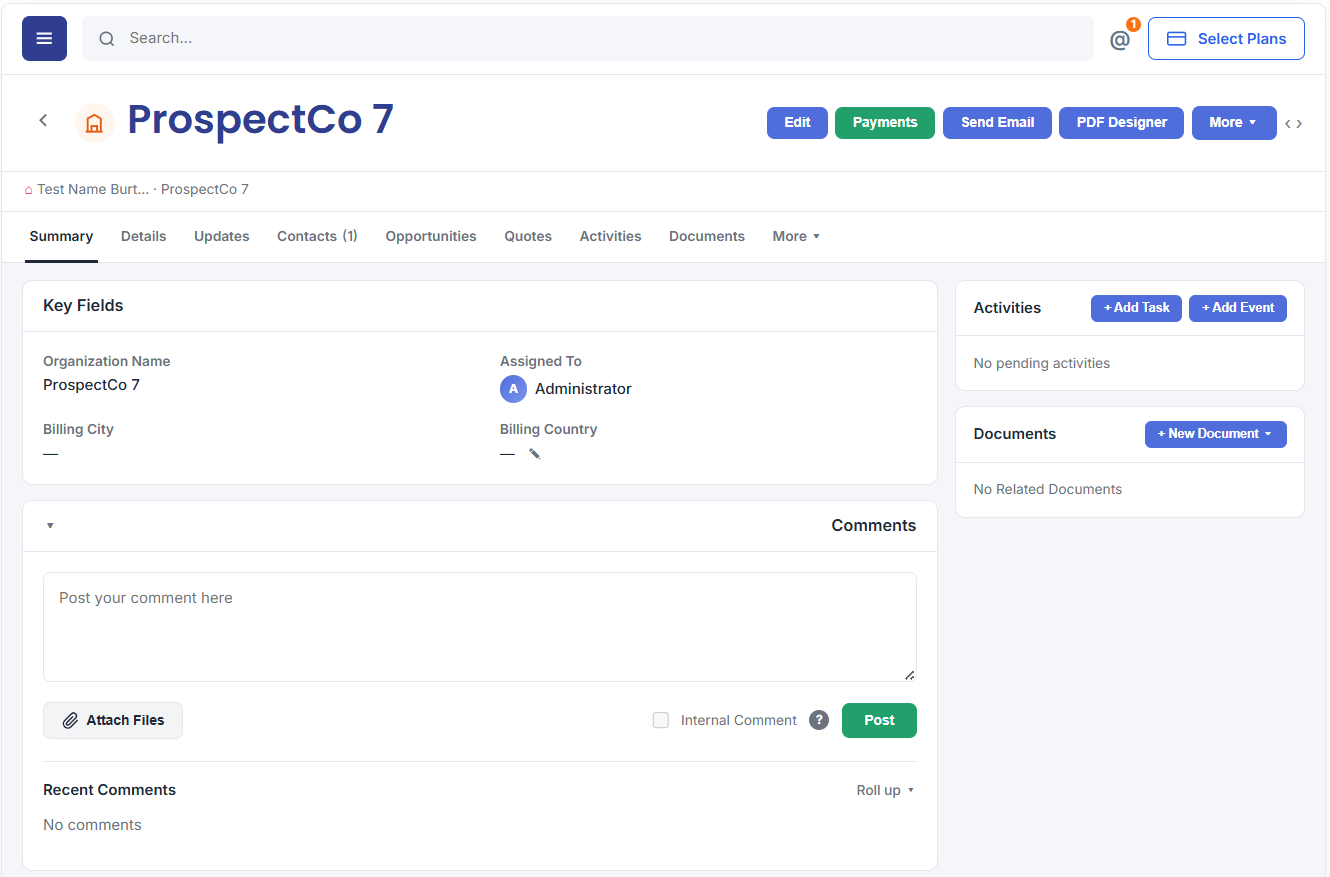
You can reply to a comment using the Reply icon on the top right of a Comment window. In the Reply window, you can:
- Reply with different types of Emojis, displayed beside the Reply icon.
- Copy the Comment link to the clipboard.
- Add a Sticky Note to the comment.
- Add an image using the Image icon.
- Add a document by linking it using the Link icon.
- Attach files from the CRM and your computer to your comments.
Benefits of Comments
Keep every conversation inside the CRM clear, accountable and always in context.
Seamless Order
Management
Everyone stays on the same page without endless emails.
Saves Time
Quick communication right where the data lives.
Ensures Accountability
Clear records of who said what and when. No need to switch tools; everything is inside the CRM.
