 Skip to content
Advance Email
- Home
- Zaris Features
- Advance Email
Advance Email Module — User Guide
Advanced Email enables organizations to streamline communication through a centralized email management system. It provides the tools needed to create, send, monitor, and manage email communications efficiently, helping teams maintain consistent engagement, improve outreach effectiveness, and track communication performance from within the CRM.
Compose & recipients
Pick recipients and a related module Vendors, Leads or Contacts with CC and BCC support.
Templates & attachments
Insert pre-designed email templates, attach computer files or browse CRM records.
Send, draft or schedule
Send now, save as draft or schedule for later with reminders to automate follow-ups.
Compose Email Effortlessly
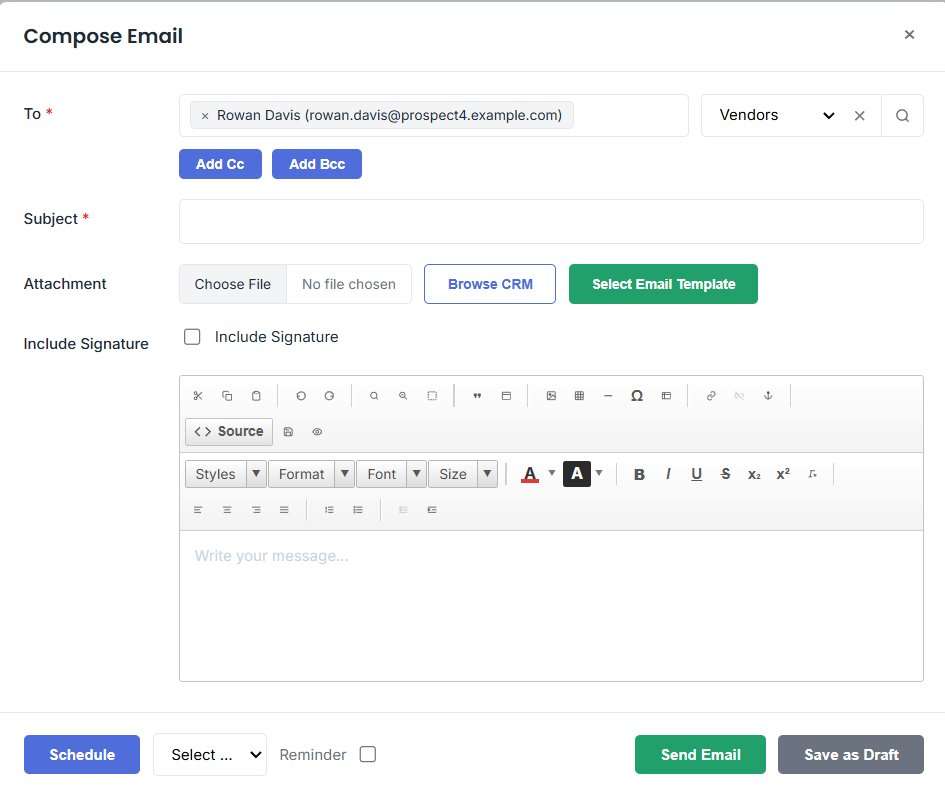
The Advanced Email Module enables users to compose and send emails directly from the CRM. With an intuitive interface, users can select recipients, add CC/BCC, and choose related modules such as Vendors, Leads, or Contacts. This ensures quick access to the right records for seamless communication.
Open the Compose Email window from any record or the email module. Add recipients in the To field, switch the related module (Vendors, Leads, Contacts) and expand Add Cc or Add Bcc when you need more recipients.
- Select recipients directly from linked CRM records.
- Choose the related module to narrow the lookup.
- Add CC and BCC recipients in one click.
Email Content and Attachments
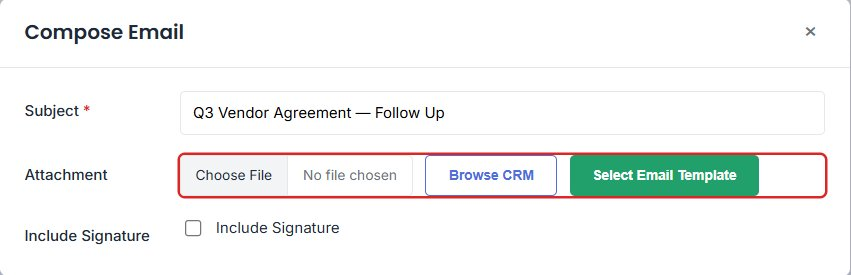
Add a subject, attach files from your computer or browse CRM records to include relevant documents. Use the Select Email Template button to insert pre-designed templates, saving time and keeping communication consistent.
- Attach local files with Choose File.
- Browse CRM to attach existing records and documents.
- Insert reusable email templates in one click.
Formatting and Personalization
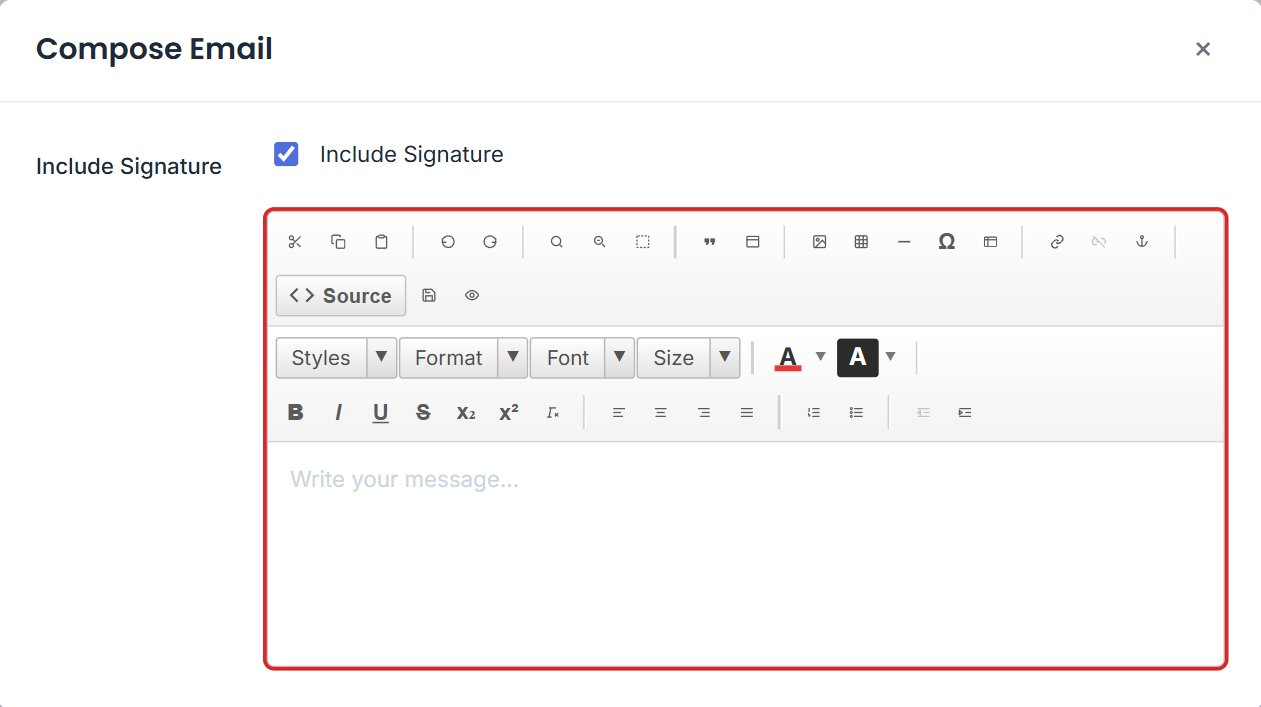
The built-in text editor offers rich formatting — font styles, alignment, bullet points and links. Users can also include their default email signature, ensuring a professional touch in every message.
- Bold, italic, underline, colors and font sizing.
- Alignment, numbered and bulleted lists, and links.
- One-click Include Signature for a professional close.
Scheduling and Sending Options
Once your email is ready, you can Send, Save as Draft or Schedule it for later. The scheduling feature allows setting reminders and time preferences, helping you automate follow-ups and manage communication effectively.
- Send immediately or save as a draft for later.
- Schedule delivery with a chosen time preference.
- Set a reminder to track follow-ups.

